Integrated Terminal for a Git and File Workspace
Forge embeds interactive terminal sessions inside the same TUI as file navigation and Git review. It is useful for running project commands while inspecting code.
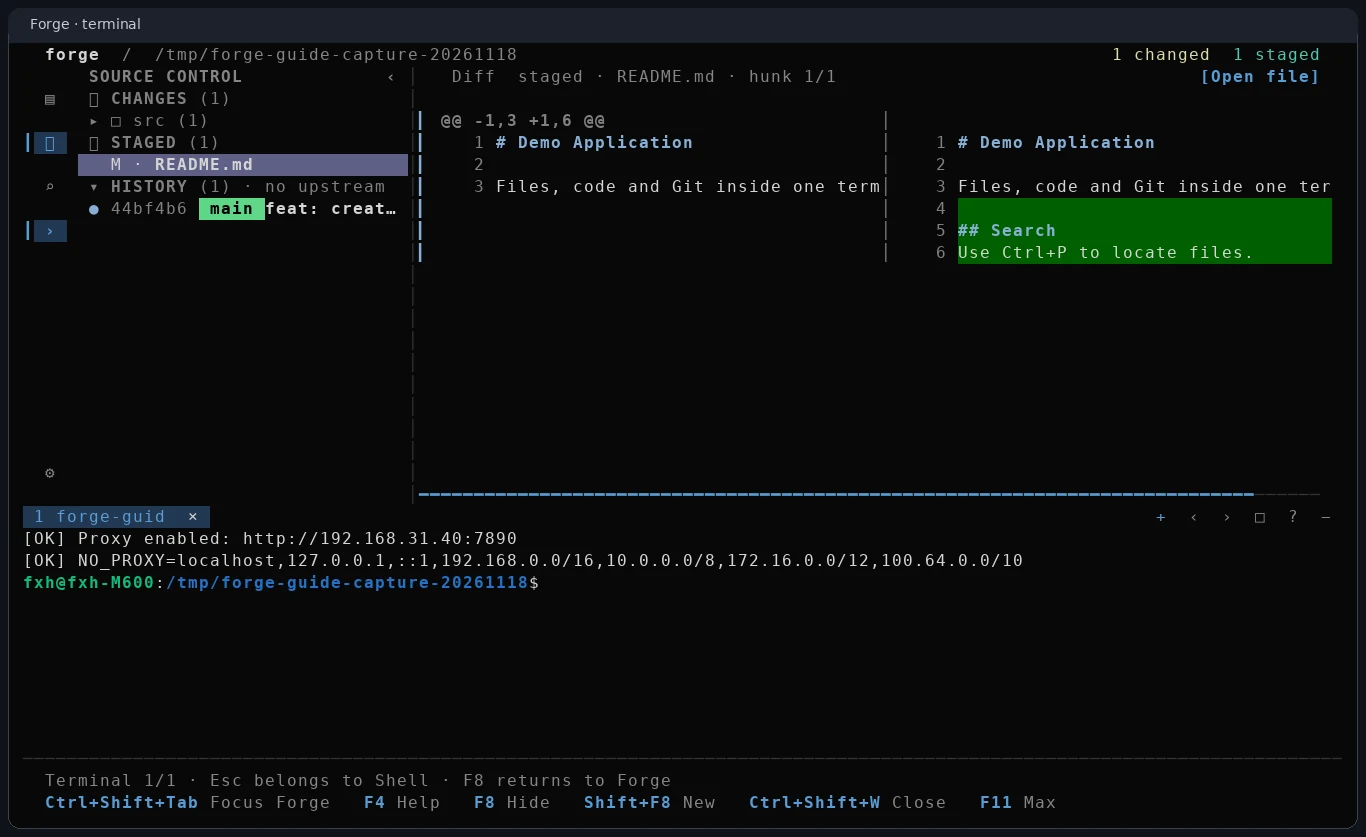
Open a shell
Launch forge in your working directory and open Terminal (F8 by default). Run the commands you normally use for development, such as git status, cargo test or npm test.
Separate tasks with tabs
Keep a shell for builds and another for interactive CLI work. Return to Files or Git when you need to inspect changes. Check the guide for the current tab and focus controls.
Pointer and keyboard behavior
Use context-aware shortcuts and mouse interaction. Programs inside a terminal can handle their own input; clipboard, selection and mouse behavior depend on the host and running program.
What it is not
Forge is not an agent service or an OS terminal emulator replacement. Install your shell and CLI tools separately; Forge provides a project-centered workspace around them.
Get started
Explore related workflows
- Forge TUI vs Lazygit: Files and Git in One Terminal
- Forge TUI vs Yazi: Terminal File Manager and Git Workspace
- A Terminal Workspace for Codex CLI | Forge TUI
- A Terminal Workspace for Claude Code | Forge TUI
- Terminal Git Client with Visual Diffs | Forge TUI
- Terminal File Manager with Mouse Support | Forge TUI