Forge TUI User Guide
A practical, screenshot-driven guide to the current Forge v0.4.0 development version. All screenshots come from a real running Forge terminal session with an isolated sample Git repository, not mockups. Click any screenshot to open its original full-resolution image. Check F4 for your effective key bindings—custom bindings and terminal input capabilities can differ.
Start here:
F1Files ·F2Git ·Ctrl+PFind file ·Ctrl+KCommands ·F4Shortcuts ·F5Help ·F8Terminal ·F9Settings. Old shortcuts such as?,,, and plains/uare no longer the defaults for Help, Settings, and Stage/Unstage.
1. Install and launch
On supported Linux and macOS targets, install the latest release:
curl -fsSL https://forge.runs-on.dev/install.sh | shOn Windows 10/11 x64, install a native forge.exe from PowerShell (no WSL needed):
irm https://forge.runs-on.dev/install.txt | iexThe Windows installer verifies SHA-256, installs under the user profile, and updates the user PATH. Open a fresh terminal after installation. Close Forge and rerun the installer to upgrade; forge update currently works only on Linux/macOS. Install Git for Windows for Git actions.
The installer verifies the downloaded release against matching checksums. Use FORGE_INSTALL_DIR for a custom destination or FORGE_VERSION to pin a published release. From the project directory:
cd /path/to/project
forge
Run forge update for self-update or obtain a package from GitHub Releases. For source builds, use cargo build --release -p forge inside the repository (Rust 1.89+ and Git required). Windows also has a native x64 ZIP release target; WSL is optional.
2. Workspace layout and navigation
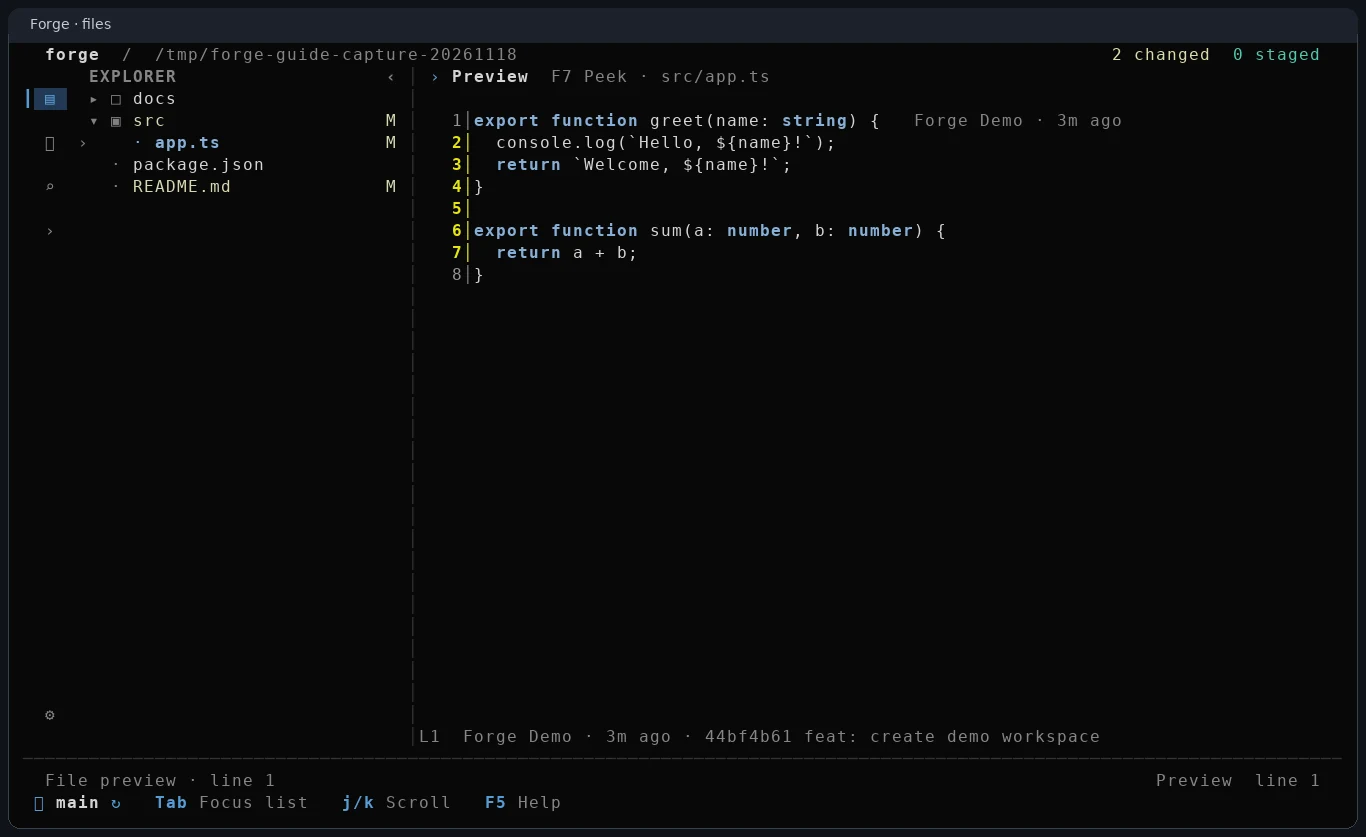
The Activity Bar contains Files, Source Control, Search, Terminal and Settings. The collapsible sidebar lists your files or Git changes; the preview area shows the selected file or diff; the footer lists the actions available in the current focus. Use Tab / Shift+Tab to move focus and Ctrl+B to collapse or reopen the sidebar.
In a file tree, use j/k or arrow keys to move, Enter / l to open or expand, and h to collapse or move to the parent. Home, End, PageUp and PageDown navigate longer lists. Selecting a folder intentionally does not force a file preview. Use the right-click menu or Commands for create, rename, copy and delete operations; destructive actions require confirmation.
3. Find files and search content
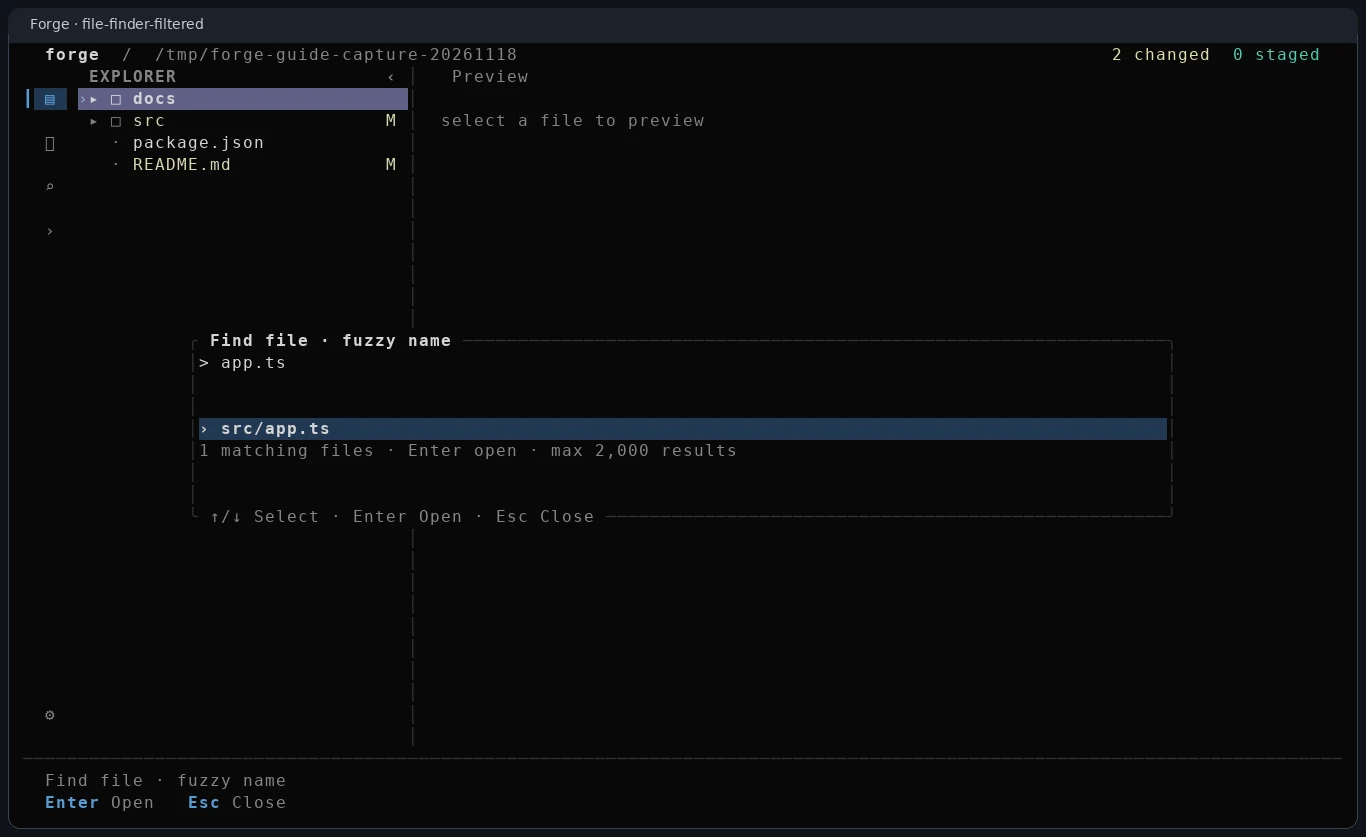
Ctrl+P opens the fuzzy file finder. Type part of the name, use ↑/↓ to choose a result, then Enter to open it. Forge also reveals the corresponding path in the file tree. Use Esc to close the finder.
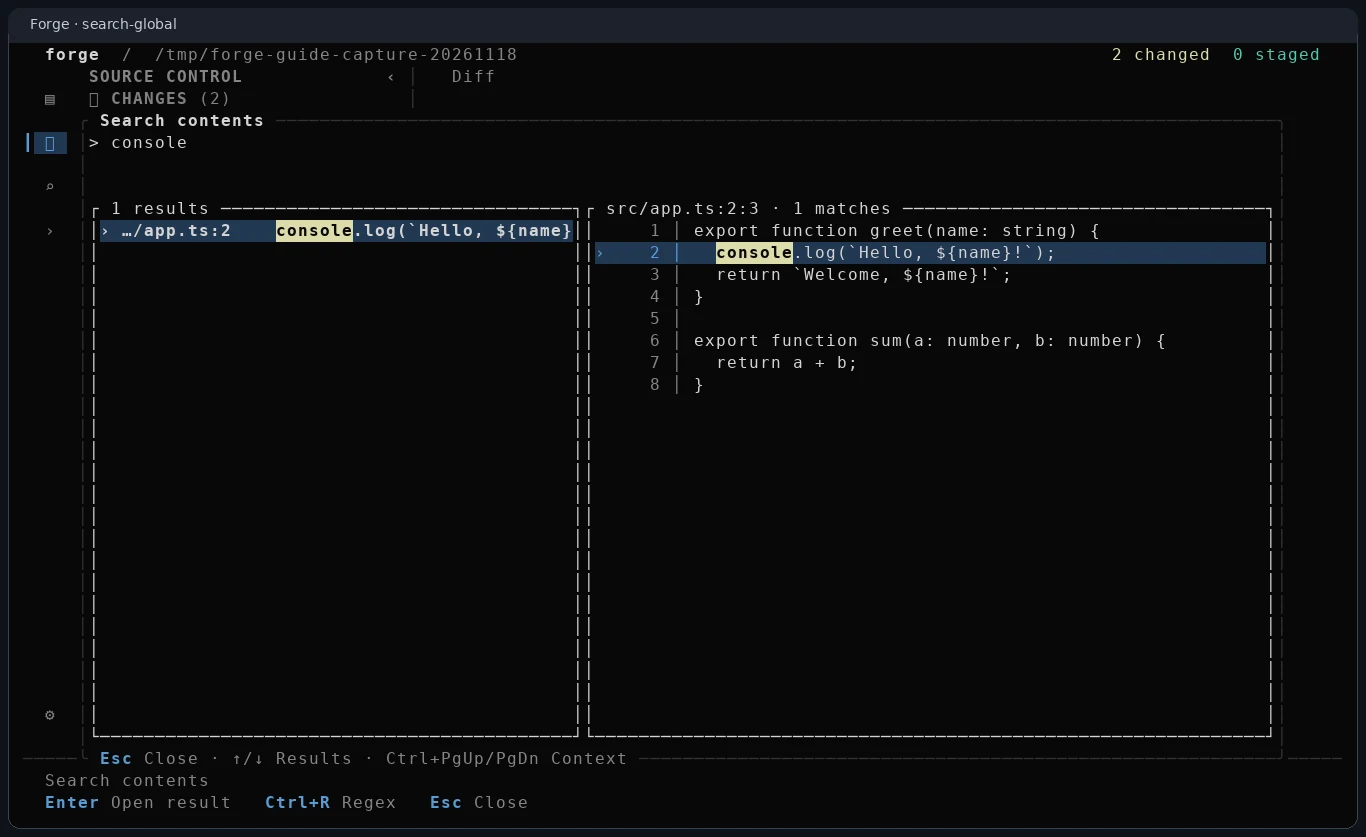
For global content search, click Search in the Activity Bar, or press Ctrl+K and select Search file contents / regex. Some terminals can send Ctrl+Shift+F directly. Search results list file paths and matching lines; selecting a result previews its context, and Enter opens the exact line. Toggle regular expressions with Alt+R inside the search panel. Ctrl+R refreshes files, Git status and the current search results by default; check F4 if you have rebound Refresh. File-name search and content search are separate operations.
4. Search within the current file
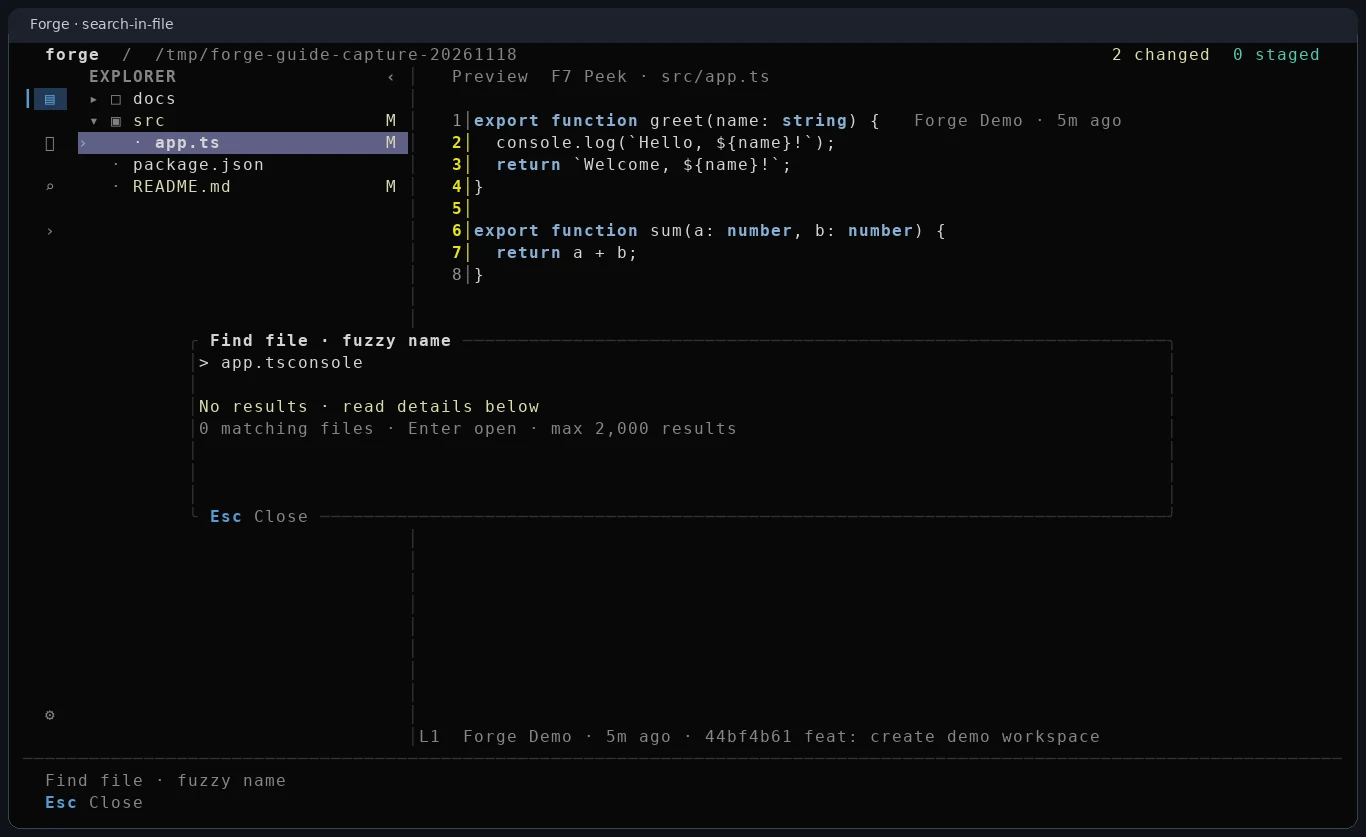
Open a code file, focus its preview with Tab, and press Ctrl+F to search within that file. Enter a keyword, then use Enter / Shift+Enter to move through matches; Esc closes the toolbar. Ctrl+F behaves according to focus—use the Commands palette for global search if in doubt.
5. Code, Markdown and change markers
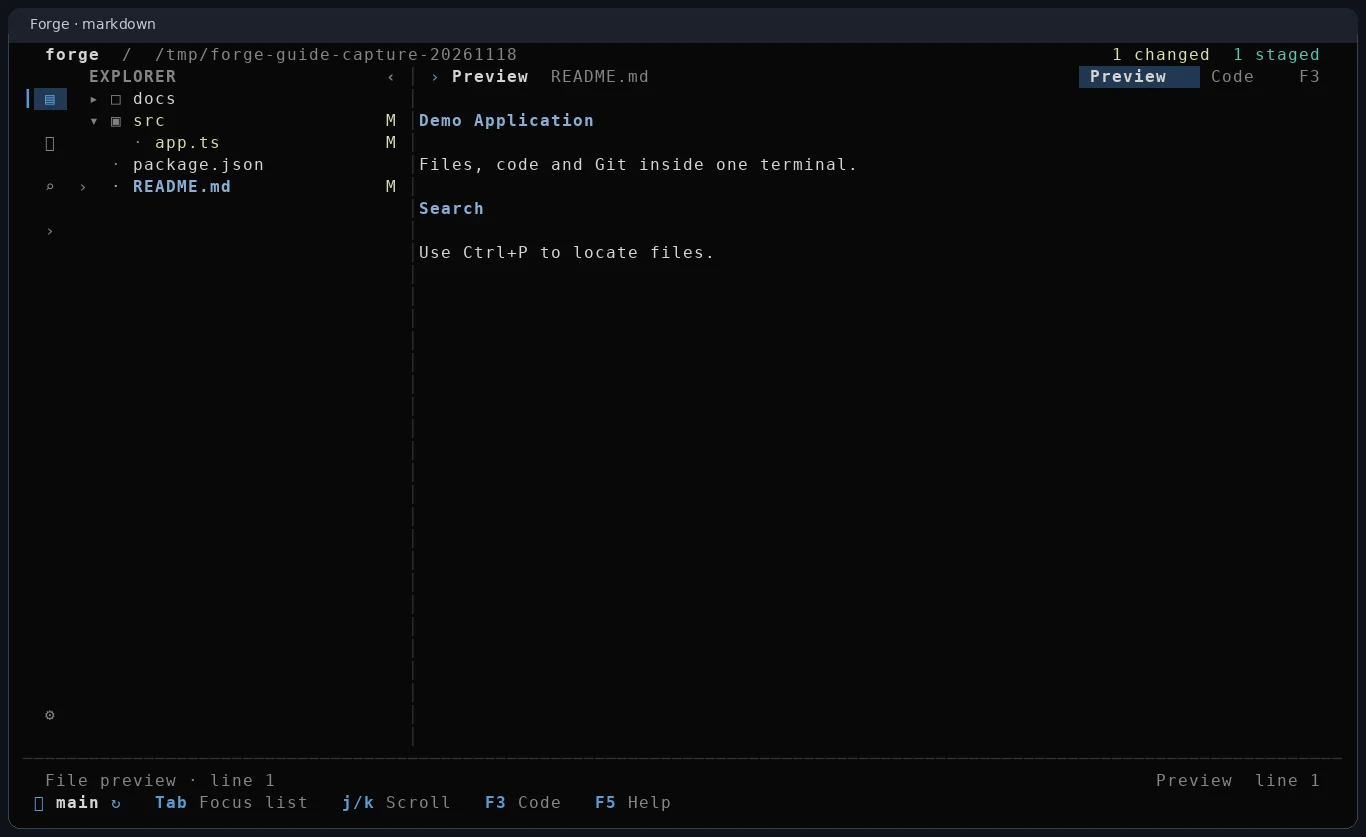
For Markdown files, F3 toggles Preview (rendered) and Code (source). Code previews support line numbers and syntax highlighting. F6 opens blame/commit details for supported source contexts. F7 shows a Git Change Peek near changed lines without pushing the source text down. The optional Focus Overview provides a compact map of noteworthy locations rather than a full code minimap.
6. Git changes and full-file diff
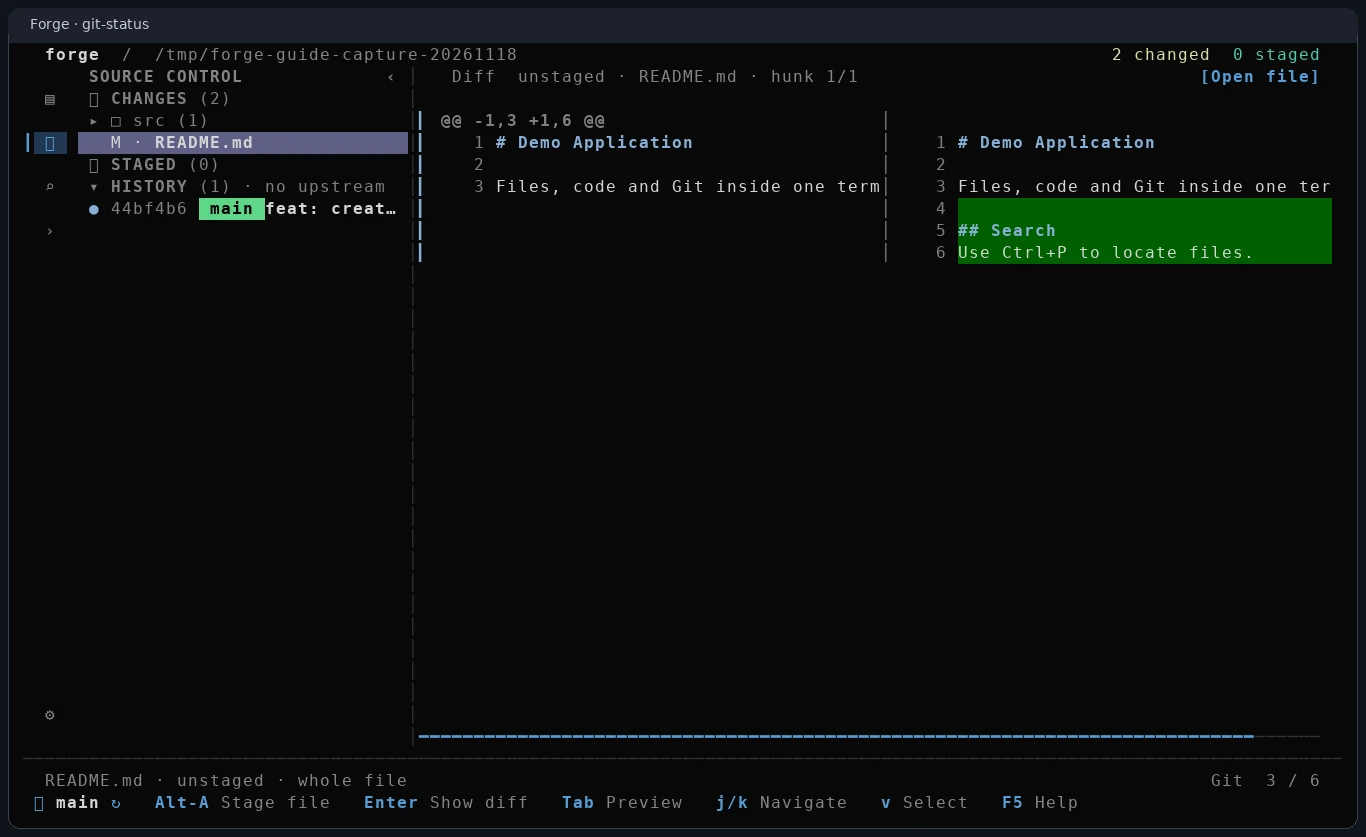
Press F2 to open Source Control. The sidebar separates CHANGES (working tree), STAGED (Git index) and HISTORY (commits). Expand folders with Enter, select a changed file and inspect its diff on the right.
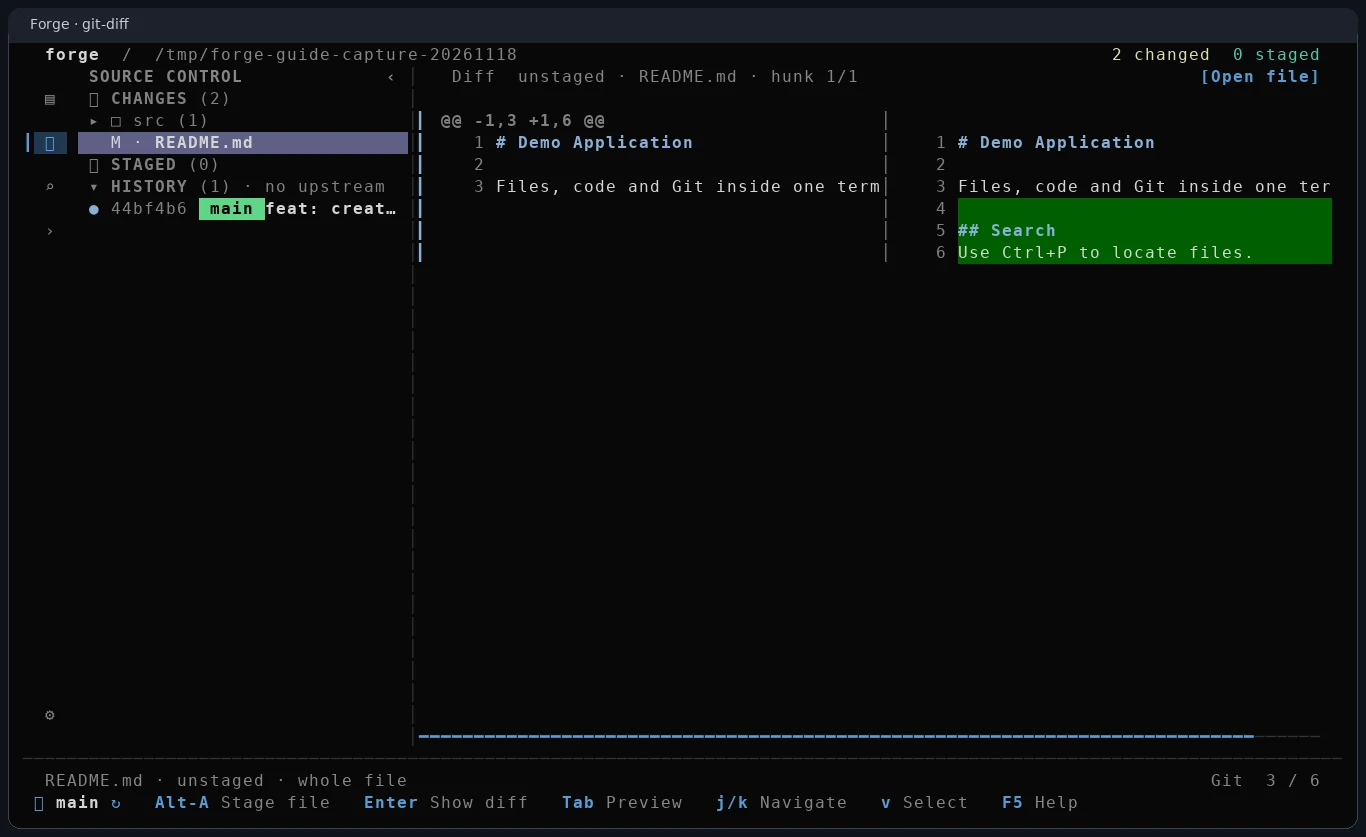
Forge supports full-file diff context, including unchanged lines where available. Use Tab to change focus; Alt+Left / Alt+Right or the horizontal scrollbar to view long lines. Click [Open file] in the diff heading or press o to locate the current working-tree file in Files. A single file may appear in both CHANGES and STAGED when it has both indexed and unindexed modifications.
7. Stage, unstage and commit
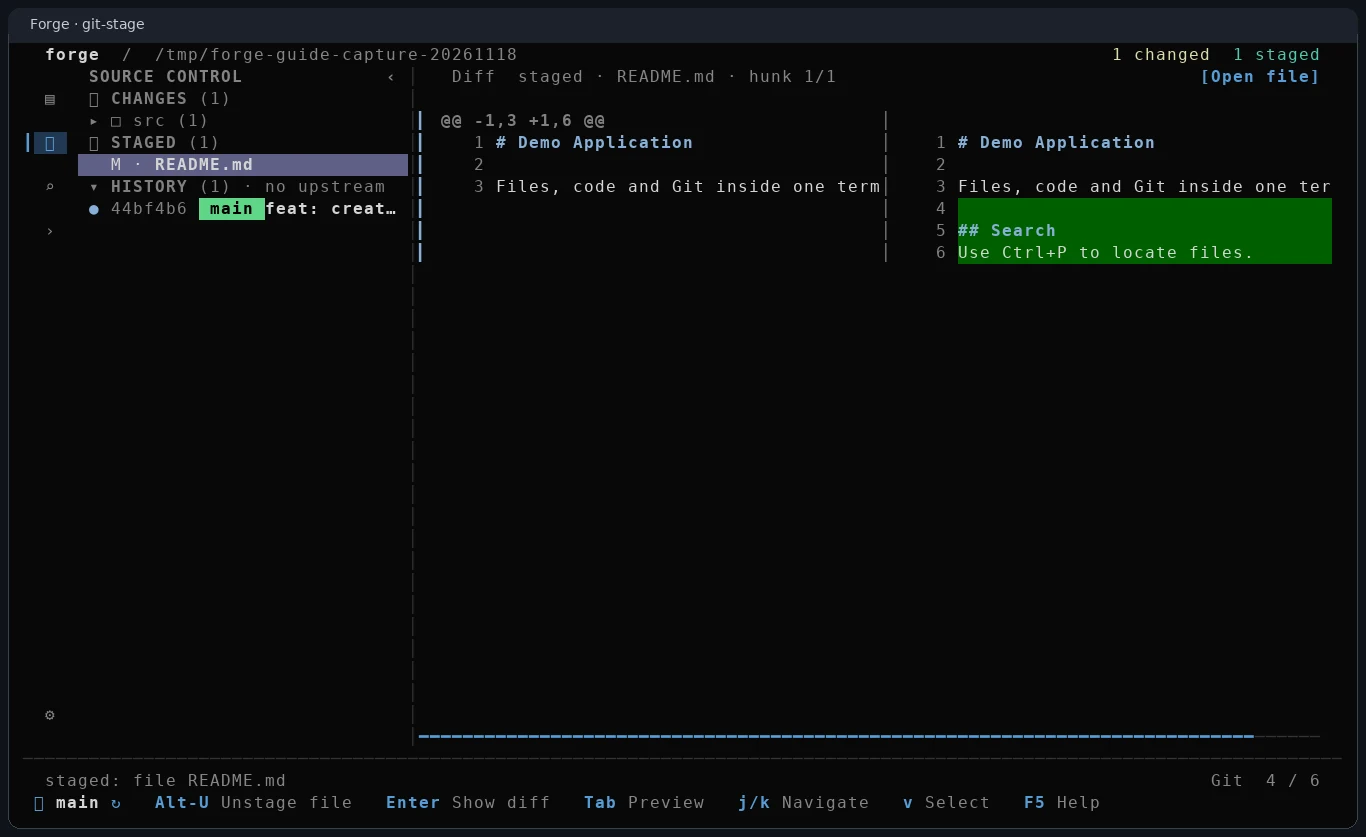
Select an unstaged file in Git and press Alt+A to stage it. Select a staged file and press Alt+U to unstage it. With the left pane focused, selection can apply to files, folders or explicitly marked items; in a diff, it can target the current hunk. Verify the staged list before committing. Discarding a change (x) is separate and destructive.
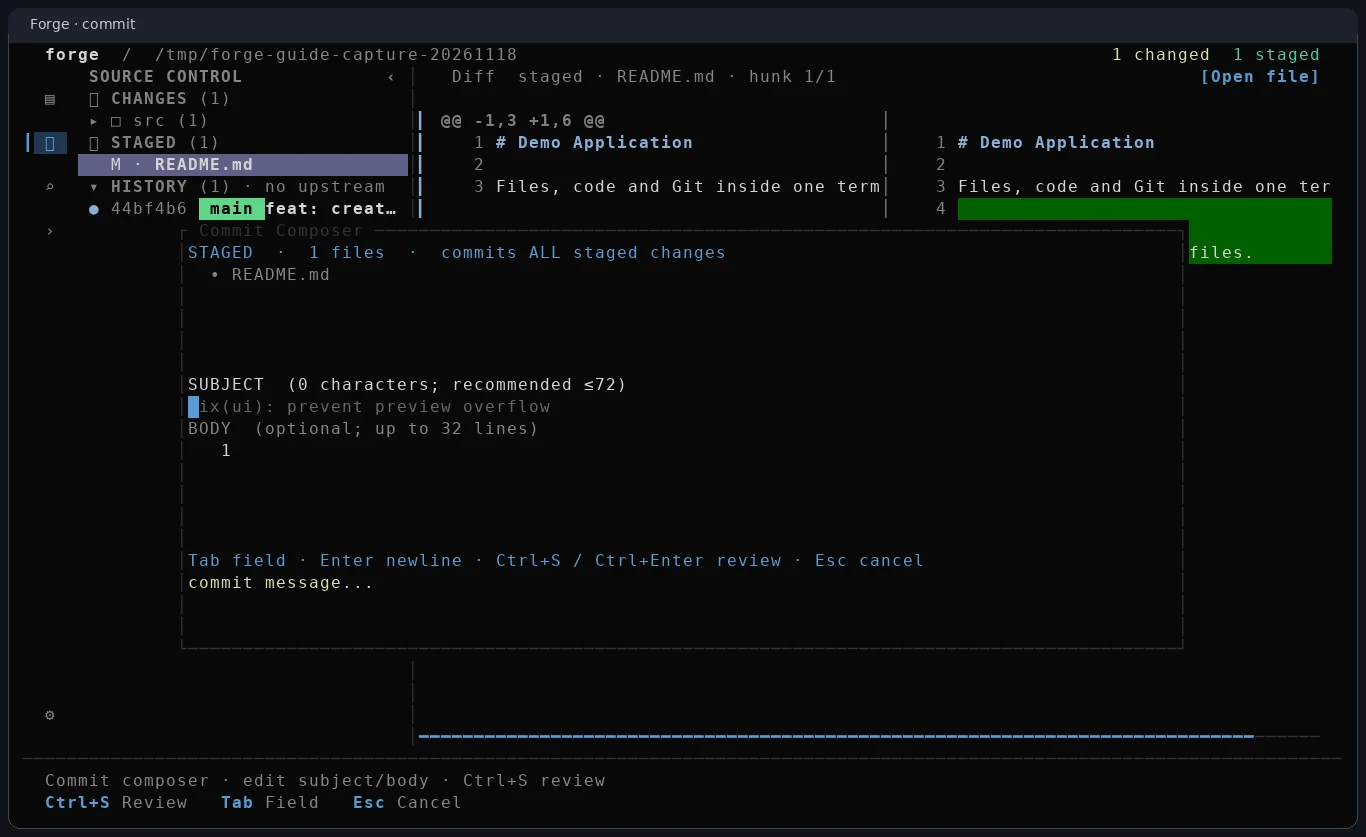
Press c from Git to open the Commit Composer. Verify the staged file count, enter a concise subject and optionally a longer body. Use Tab to switch fields. Ctrl+S / Ctrl+Enter leads to the review/confirmation action; Enter while editing is not an immediate commit. Esc cancels the dialog. Only indexed changes are included in the commit.
8. Commit history, blame and branches
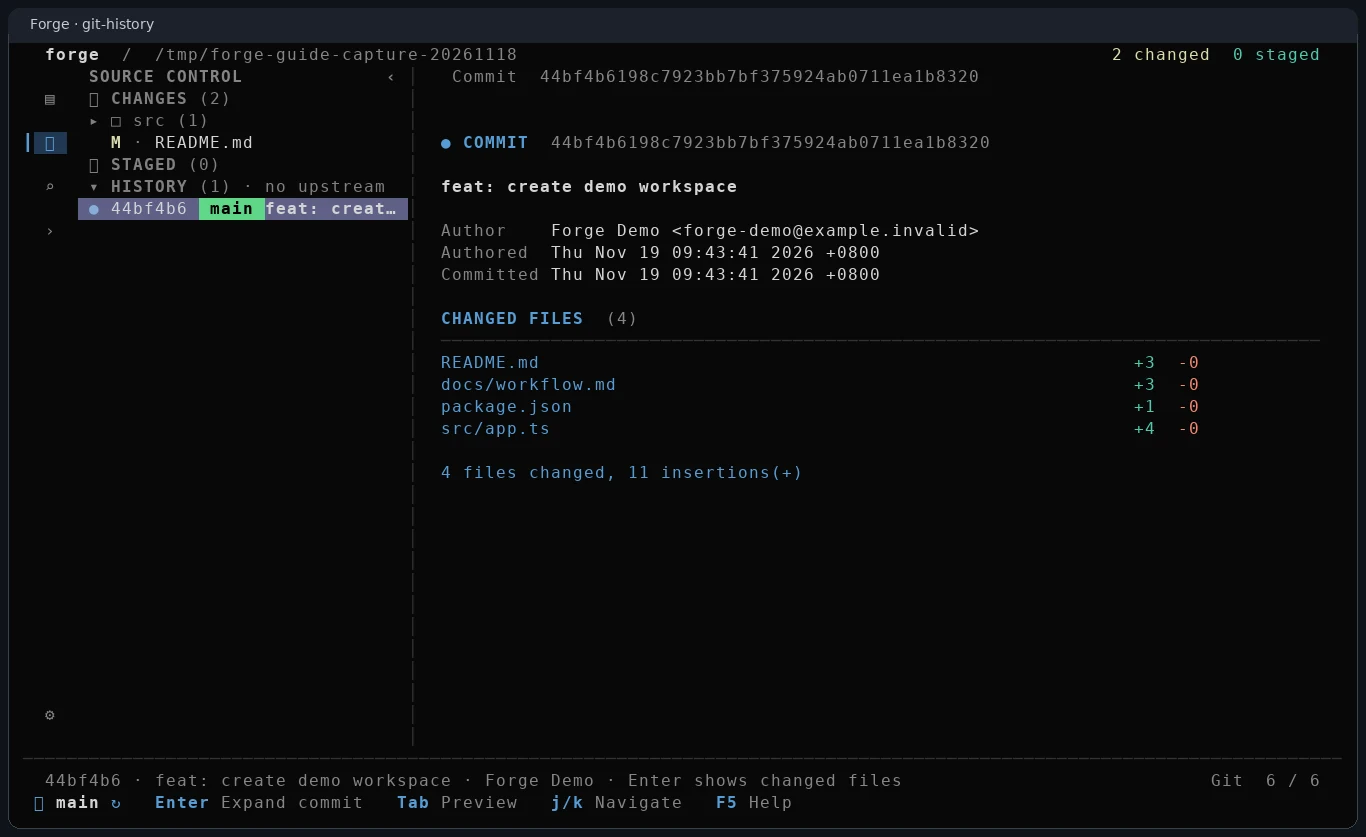
The Git sidebar’s HISTORY section shows committed revisions, including local commits not yet pushed. Select a commit to see its metadata and file list, or expand its changed-file tree. Alt+G focuses repository history, Alt+L opens the commit history dialog and Alt+H opens file history. Use F6 for blame details when examining supported source lines.
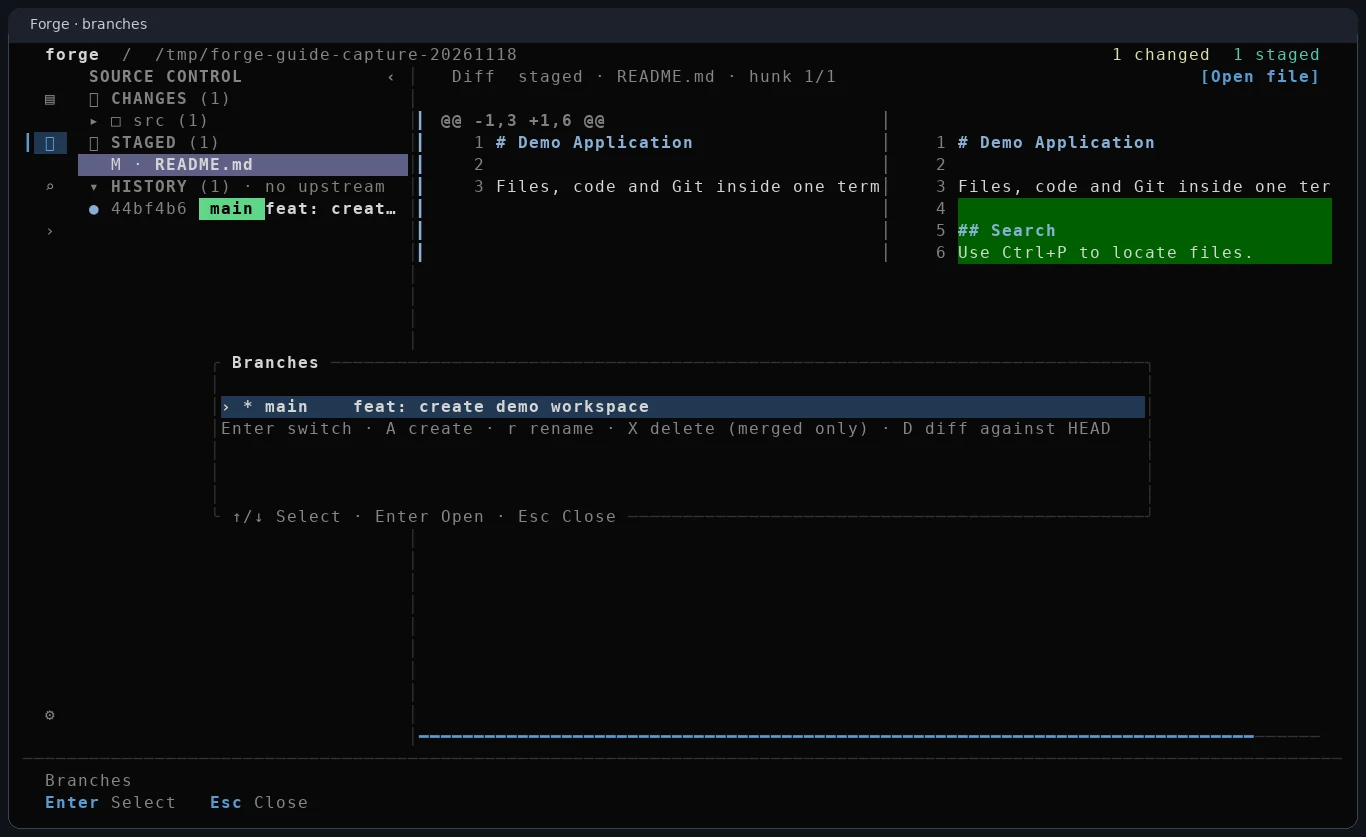
Alt+B opens Branches. The current branch is marked with *. The on-screen actions include A create, r rename, X delete a merged branch and D compare to HEAD. Alt+W opens Worktrees. Alt+S opens remote synchronization; clicking the status chip does not blindly push. In the right Git context, Alt+P pushes and Alt+R pulls. Verify your remote, upstream and dirty working tree before synchronizing.
9. Stashes
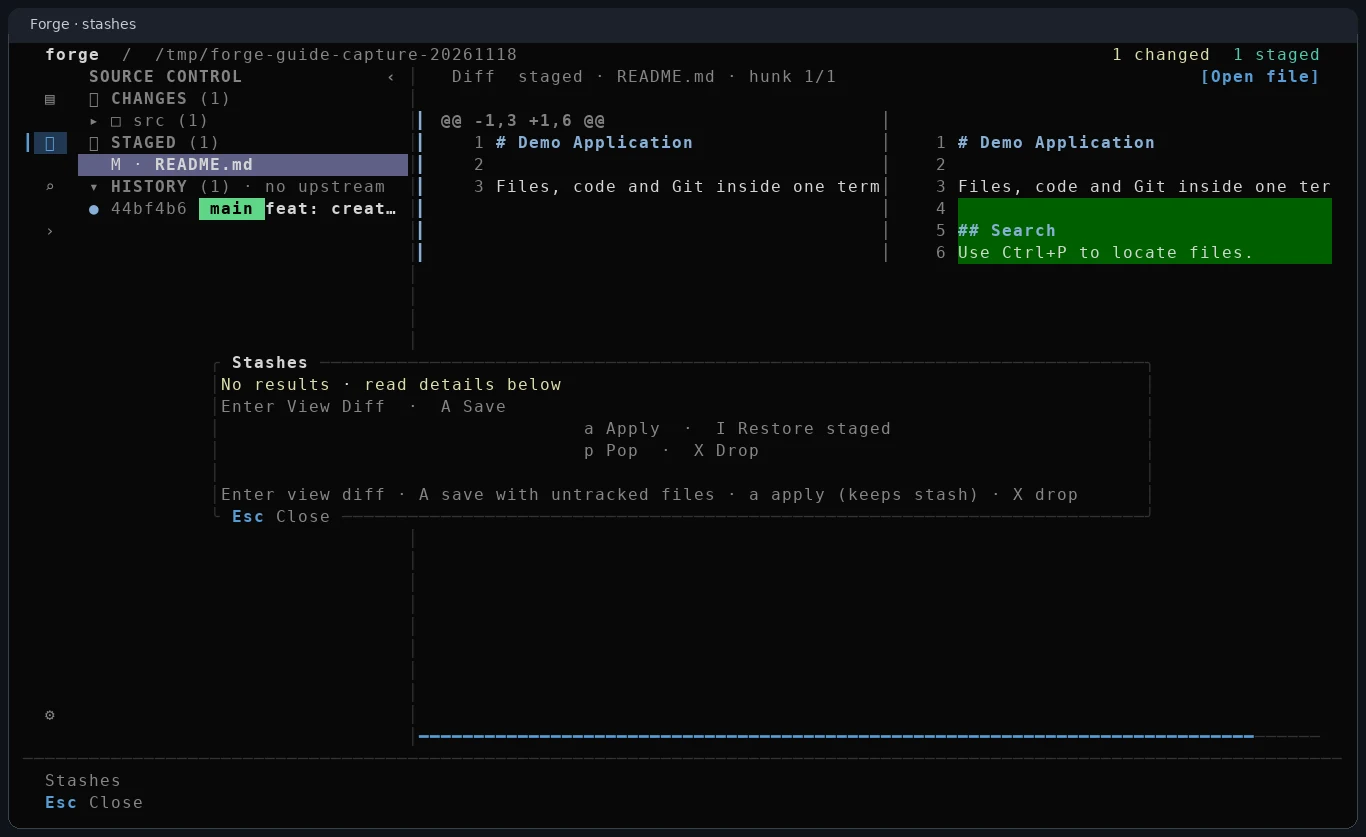
Press Alt+Z to manage Git Stashes. Use A to save the current work, Enter to inspect a stash diff, a to Apply while keeping the stash, p to Pop, or X to Drop. Read the dialog’s currently displayed help before making destructive changes. A stash is not a replacement for a committed backup.
10. Built-in text editor
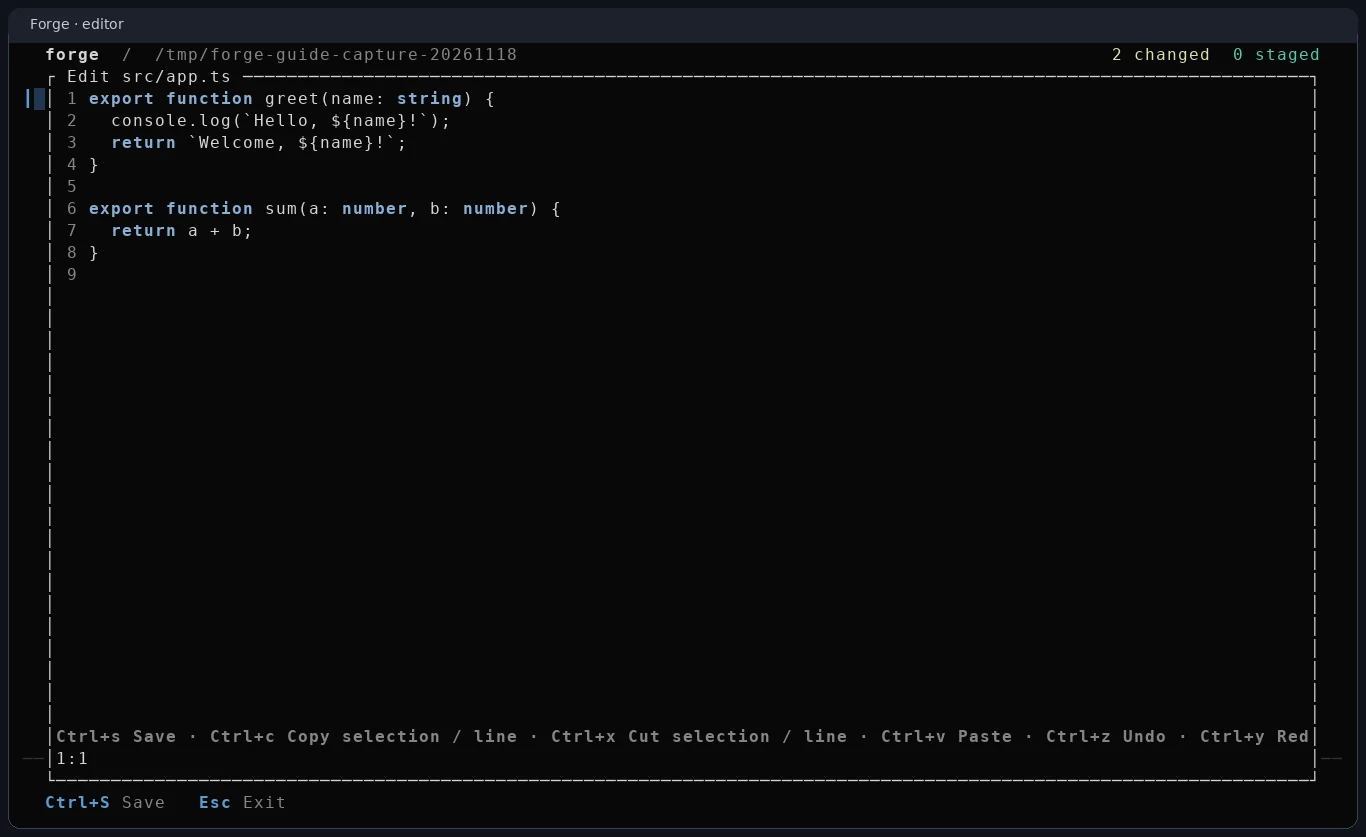
Select an editable file and press Ctrl+E. The lightweight editor supports selection, clipboard actions, line editing and undo/redo. Main keys: Ctrl+S Save, Ctrl+C Copy, Ctrl+X Cut, Ctrl+V Paste, Ctrl+A Select All, Ctrl+Z Undo, Ctrl+Y Redo. Esc exits or, if modified, opens a decision about saving, discarding or continuing editing. Unsaved edits are not silently saved.
11. Embedded Terminal and tabs
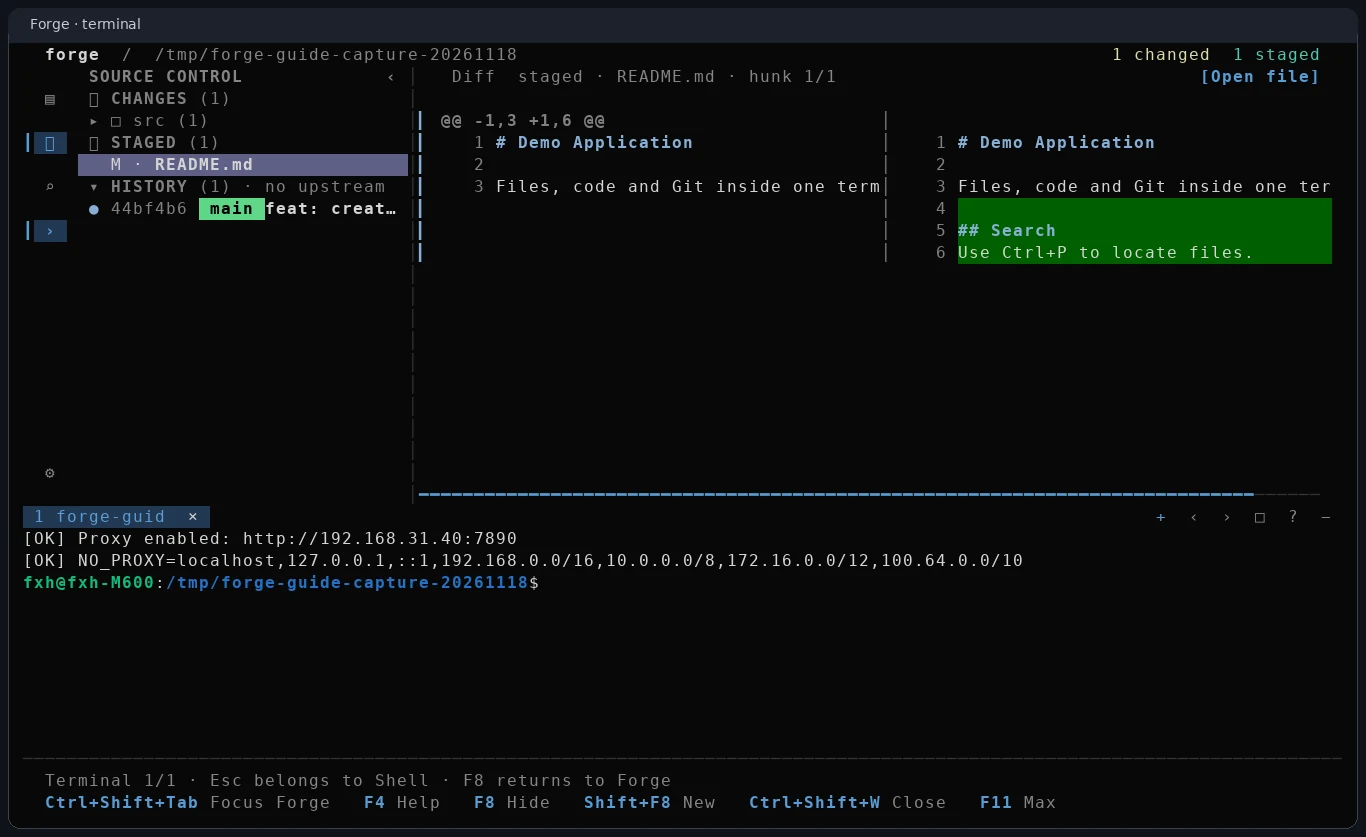
F8 opens or hides an embedded local Shell without destroying its session. F11 maximizes/restores it. Up to eight tabs can be opened with Shift+F8 or Ctrl+Shift+N and selected using Alt+1 through Alt+8. F12 switches to the next tab, while Ctrl+Shift+W closes the current one. The bar’s +, ‹, ›, □, ?, and − buttons create, switch, maximize, show help and hide; middle-clicking a tab closes it.
When the Shell has focus, Esc and normal text belong to the Shell. Use Ctrl+Shift+Tab to return focus to Forge. Scroll history with Shift+PageUp/PageDown or Ctrl+Shift+Home/End. Terminal help is available via its ? button or F4 while focused.
12. Commands, Help and settings
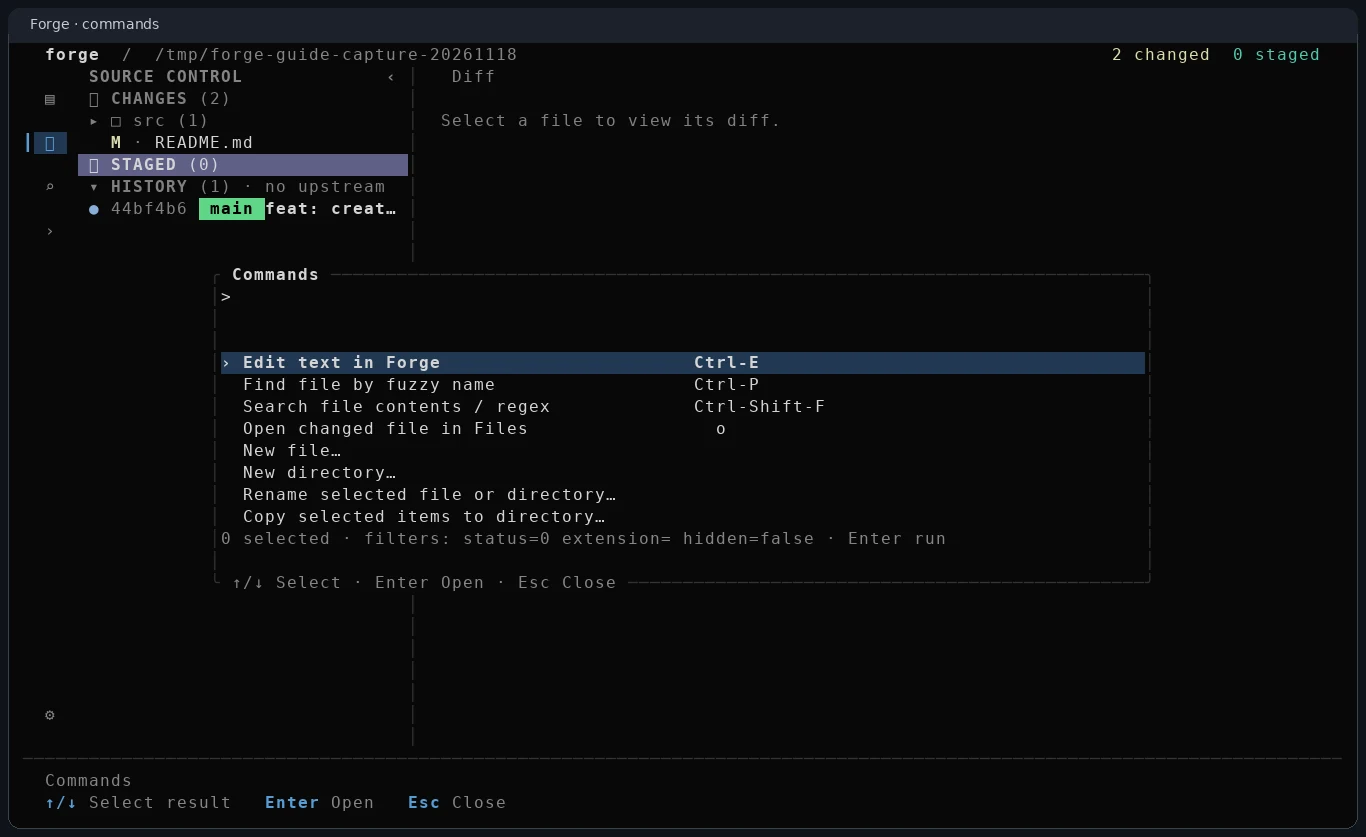
Ctrl+K opens the Commands palette to discover available operations such as search, file management, Git tools and editing. Filter by name, navigate with arrows and run with Enter; Esc cancels. F5 opens the full user help.
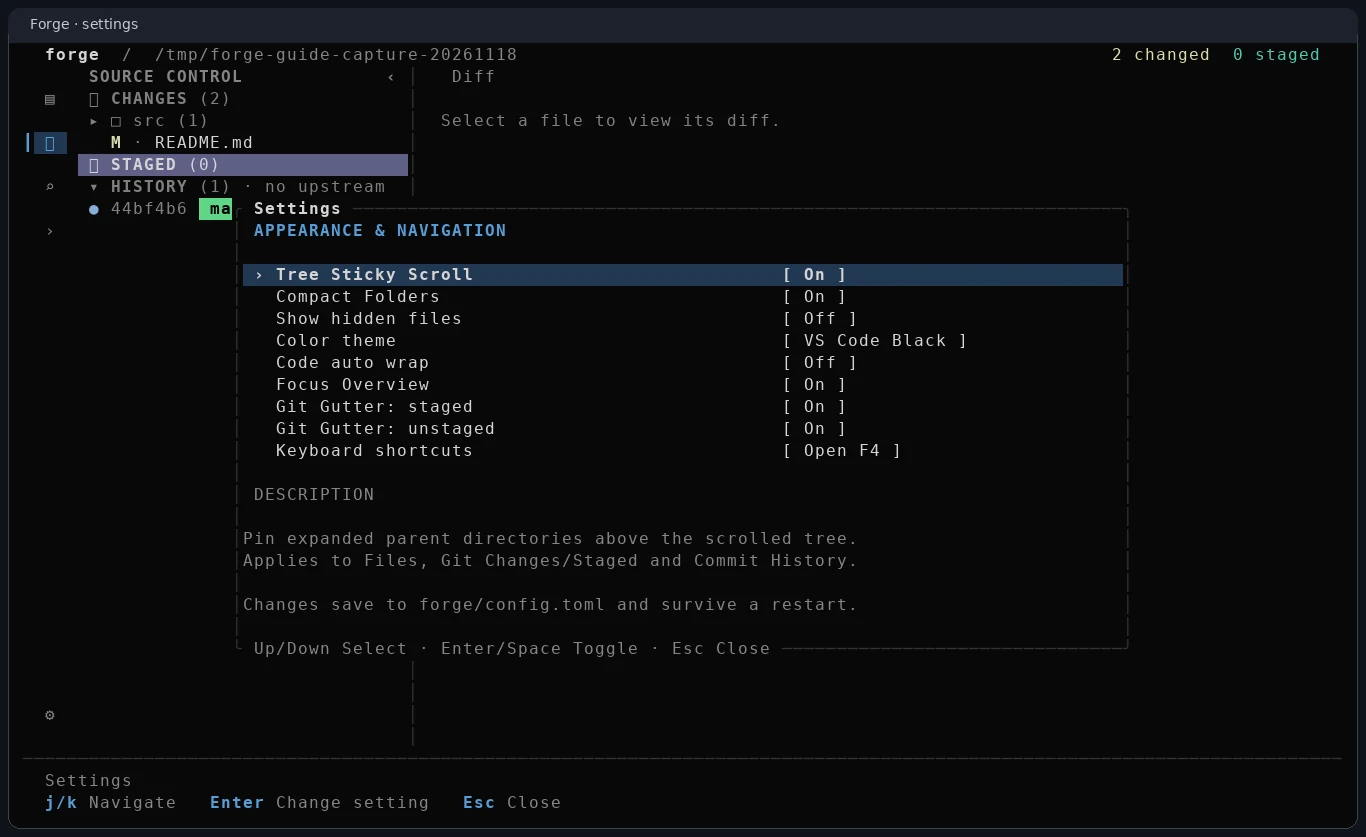
F9 opens Settings: Tree Sticky Scroll, Compact Folders, Show hidden files, Color theme, Code auto wrap, Focus Overview, staged/unstaged Git Gutter, and keyboard shortcut configuration. Use ↑/↓ to select and Enter or Space to apply a setting. Configuration persists across restarts.
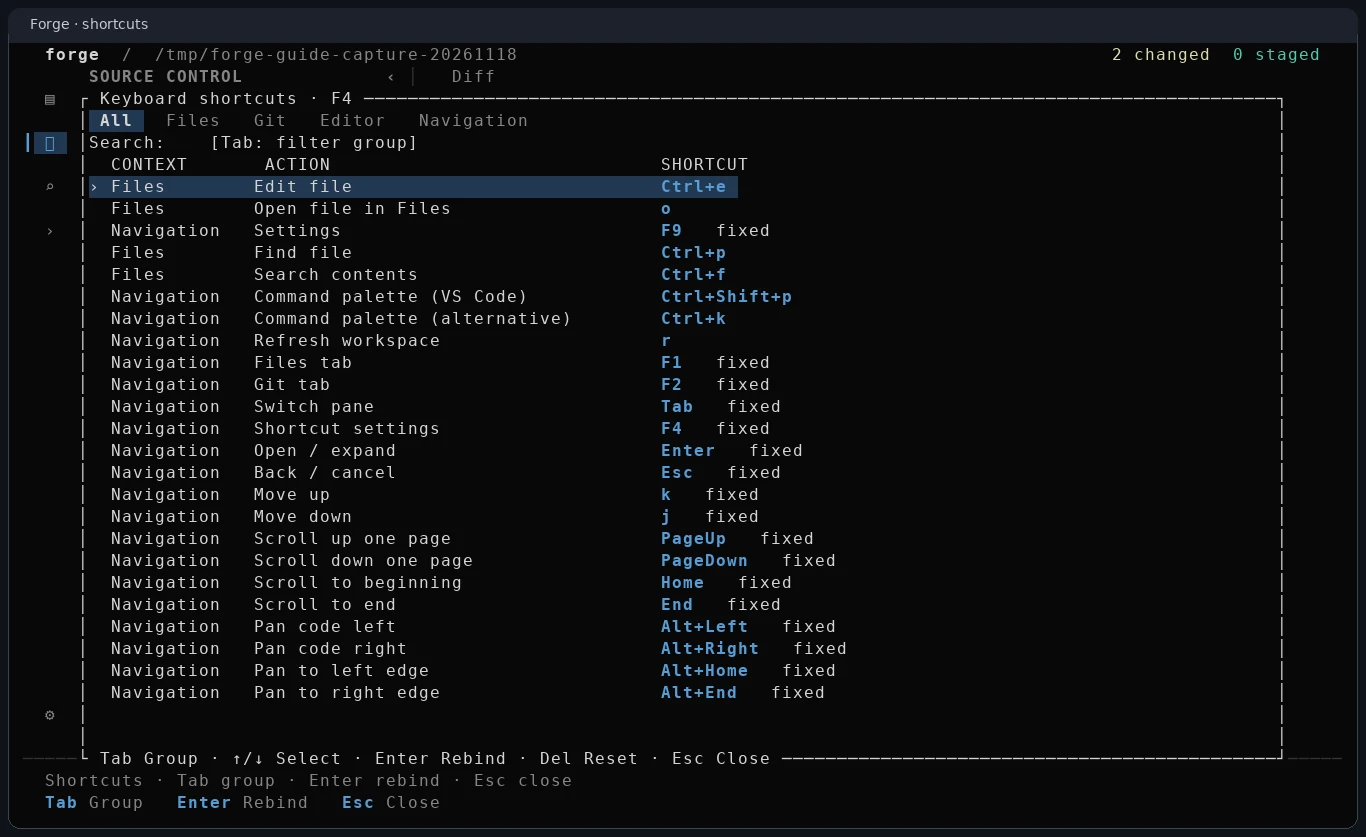
F4 opens the shortcut manager. Filter by Files, Git, Editor or Navigation, view effective bindings and reassign non-fixed shortcuts. The contextual footer reflects the active panel. Older one-character shortcuts advertised by earlier guides may no longer be valid defaults.
13. Mouse hover and compact layout
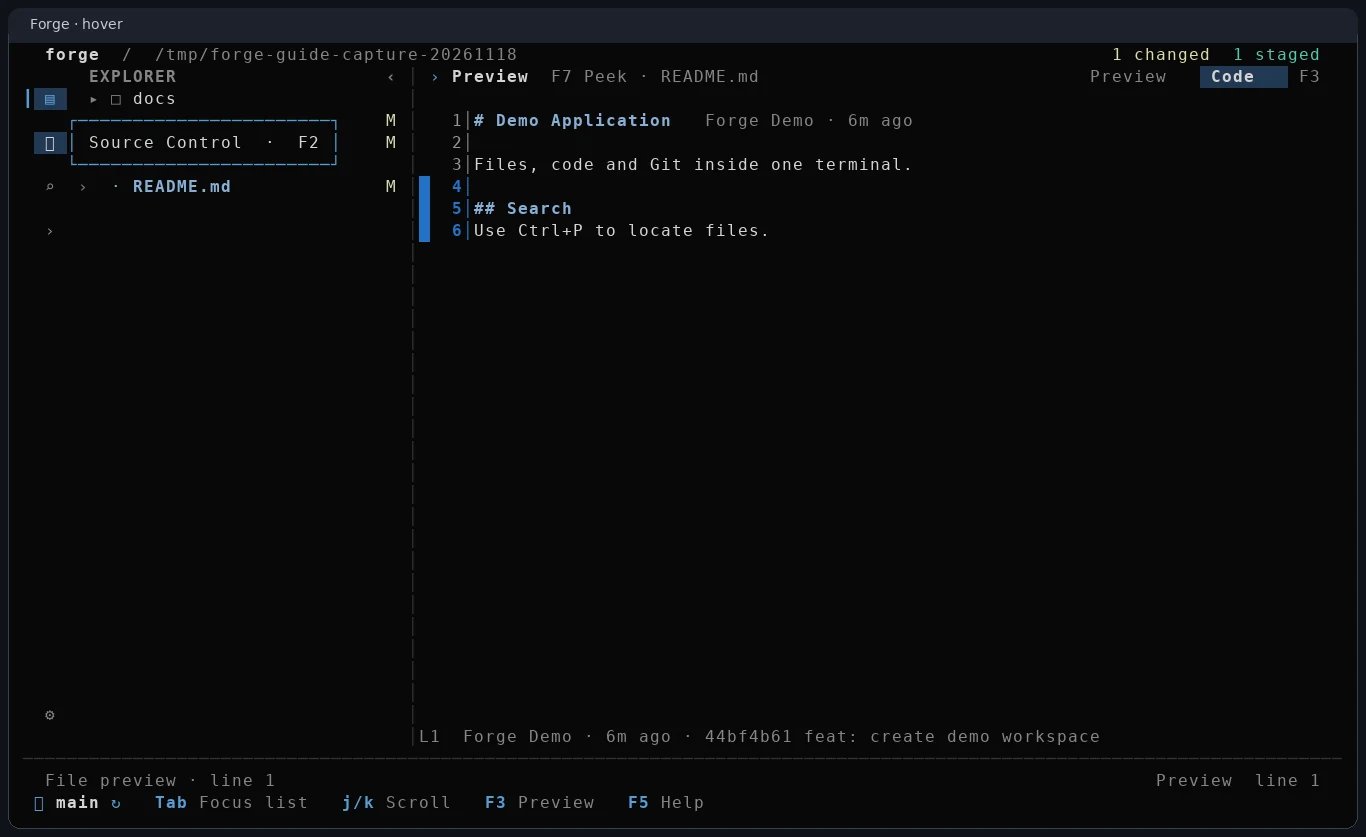
Activity Bar icons, Terminal controls and Git Diff’s [Open file] display tooltips on mouse hover. Hover is presentation-only: movement must never change active panels or run a command. The sidebar divider can be dragged to resize; scrollbars support quick positioning. Narrow terminals switch to a single-pane-oriented workflow so use Tab to alternate list and preview. Built-in Unicode icons work without Nerd Font; optional Nerd or ASCII mode is available.
14. Quick keyboard reference
| Shortcut | Action |
|---|---|
F1 / F2 |
Files / Git |
Tab / Shift+Tab |
Switch panel focus |
Ctrl+P |
Find a file by name |
Ctrl+F (preview focus) |
Find text in the open file |
Search icon / Ctrl+K |
Global content search via Commands |
F3 |
Markdown Preview / Code |
Ctrl+E |
Edit current file |
Alt+A / Alt+U |
Stage / Unstage |
c |
Commit Composer, then Ctrl+S to review |
F6 / F7 |
Blame / Git Change Peek |
Alt+G / Alt+H |
Git repository / file history |
Alt+B / Alt+W / Alt+Z |
Branches / Worktrees / Stashes |
F8 / F11 / Shift+F8 |
Terminal / Maximize / New tab |
F4 / F5 / F9 |
Shortcut manager / Help / Settings |
Esc |
Close or return (except when Shell owns focus) |
15. A complete workflow
- Launch
forgein your repository, useF1andCtrl+Pto find the file. - Read the preview, use
Ctrl+Ffor in-file search andCtrl+Efor small edits. - Use
F8if you need to execute build or test commands in the embedded Shell. - Go to Git with
F2, select a changed file and review its full diff. - Stage the verified change with
Alt+Aand confirm the STAGED list. - Press
c, compose a message and useCtrl+Sto review the commit. - Inspect HISTORY and verify upstream status before any optional push.
For release and compatibility details see GitHub Releases. For the most precise shortcut information, use F4 in your own terminal rather than relying on old screenshots.